Gmail add-on
The right email.
The right channel.
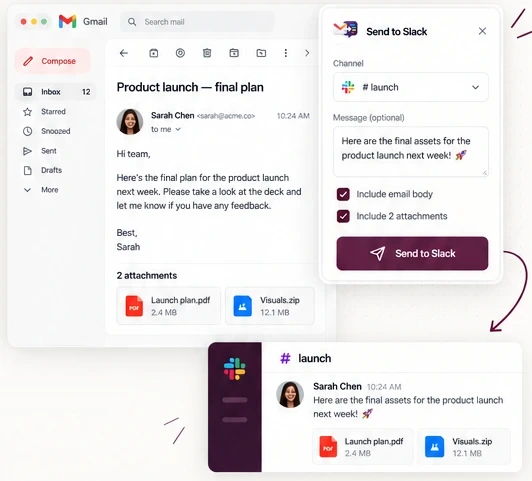
Send the email you are reading, attachments included, to any Slack channel in one click. It is posted under your own name, not by a bot, so you can edit or delete it.
- No inbox scanningOnly the email you open
- Posted as youYour name, editable
- Nothing storedEmails are relayed, not kept
How it works
From Gmail to Slack in three steps.
- 01
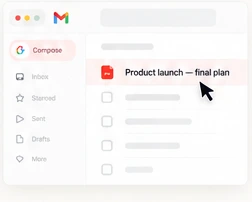
Open the email
Open any message in Gmail and click the Send to Slack icon in the side panel. The add-on only sees the email you are looking at.
- 02
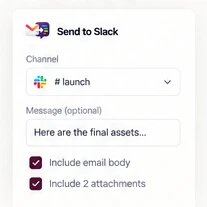
Choose a channel
Pick one of your public or private Slack channels. Your last channel is remembered, but nothing is sent until you choose.
- 03
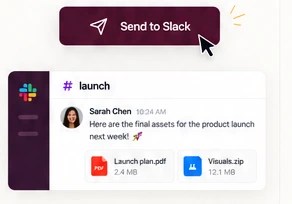
Send as yourself
One click posts the email and its attachments to Slack under your name. You stay in control: edit or delete the message at any time.
Why it feels different
A message from you, not from a bot.
Most Gmail to Slack tools post through a bot account: nobody can reply to it, edit it or clean it up. Send to Slack uses your own Slack authorization, so the post behaves like one you typed yourself.
Your name and photo
Colleagues see who shared the email, not an app.
Editable and deletable
Fix a typo or remove a post whenever you want.
Attachments included
Files are uploaded to Slack with the message, up to 15 MB per email.
Readable formatting
Line breaks are kept and HTML emails become clean quoted text.
Privacy by design
Only what you choose. Only when you send.
The add-on acts only when you press Send. There is no mailbox scanning, no background forwarding and no copy of your emails on our side.
Read the data flow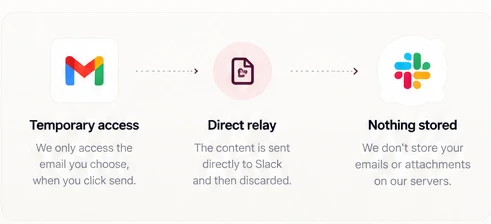
- Temporary access: Gmail lets the add-on read the open email only.
- Direct relay: the content goes to Slack as you, then it is discarded.
- Nothing stored: we keep no emails or attachments.
FAQ
Questions, answered.
Who is the message posted as in Slack?
As you. Send to Slack uses your own Slack authorization, so the message carries your name and photo, and you can edit or delete it like anything else you wrote. It is not posted by a bot.
Does it read my whole inbox?
No. Gmail gives the add-on temporary access to the one message you have open. It never searches, scans or watches your mailbox, and it does nothing in the background.
Are my emails or attachments stored?
No. The email and its attachments are relayed to Slack when you press Send and are not kept. The only thing we store is your encrypted Slack connection, which you can delete at any time with the Disconnect Slack button.
Which channels can I send to?
The public and private channels you are a member of in the connected Slack workspace. You choose the channel before each send.
What about attachments?
Attachments are uploaded to Slack with the message. The limit is 15 MB of attachments per email; above that the add-on tells you before anything is sent.
Can I remove the connection?
Yes. Open the add-on and press Disconnect Slack: the stored connection is deleted. You can also revoke the app from your Slack workspace settings.
Ready when you are
Send an email to Slack in one click.
Install the Gmail add-on, connect your Slack workspace once, and share emails with your team as yourself.